The first hour — a guided tour
The first hour, from a real account
Every screenshot below comes from a genuinely new account walking the same path you will: no keys at the start, no projects, a site the crawler had never seen. Three steps, in this order — the first one needs nothing from you but your web address.
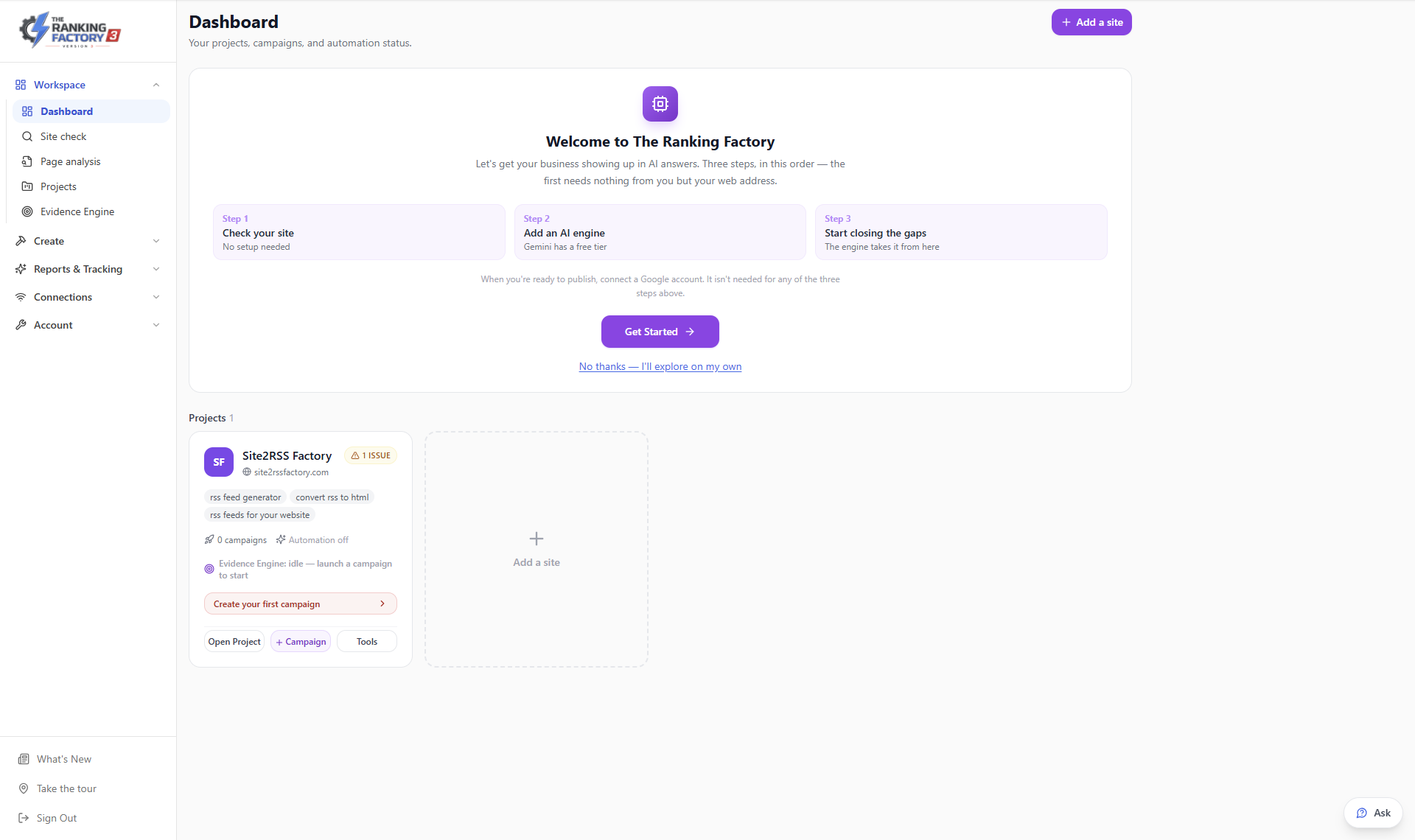
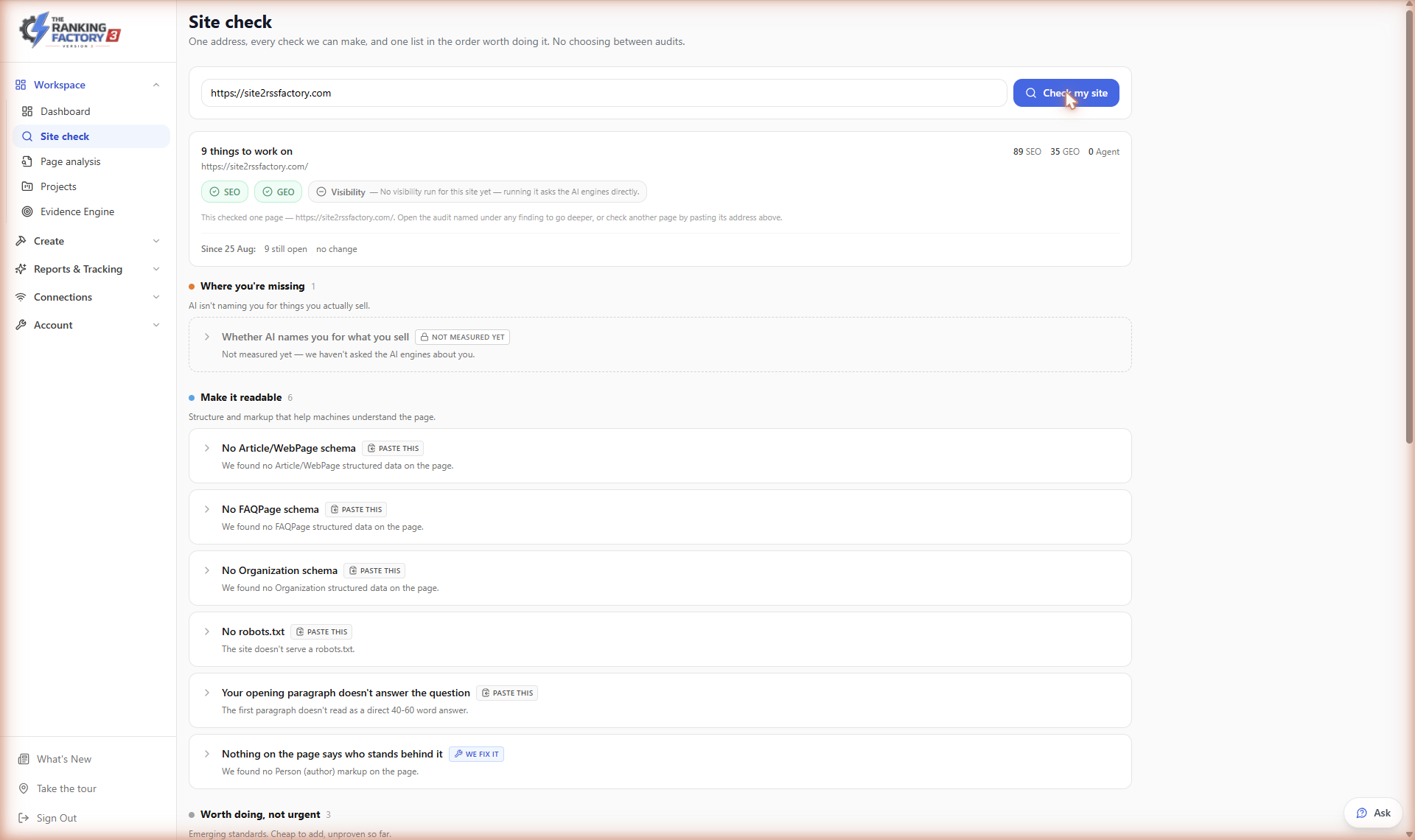
Step 1 — check your site
Type your address and press "Check my site". The check reads your site from the outside, the way an AI crawler does — no passwords, because a stranger doesn't have your passwords and a stranger is exactly who we're pretending to be. You get one list, worst first: the order is the strategy. Below the findings sits everything we checked — the passes as well as the problems, and how each one is made, so you or your developer can check it yourselves.
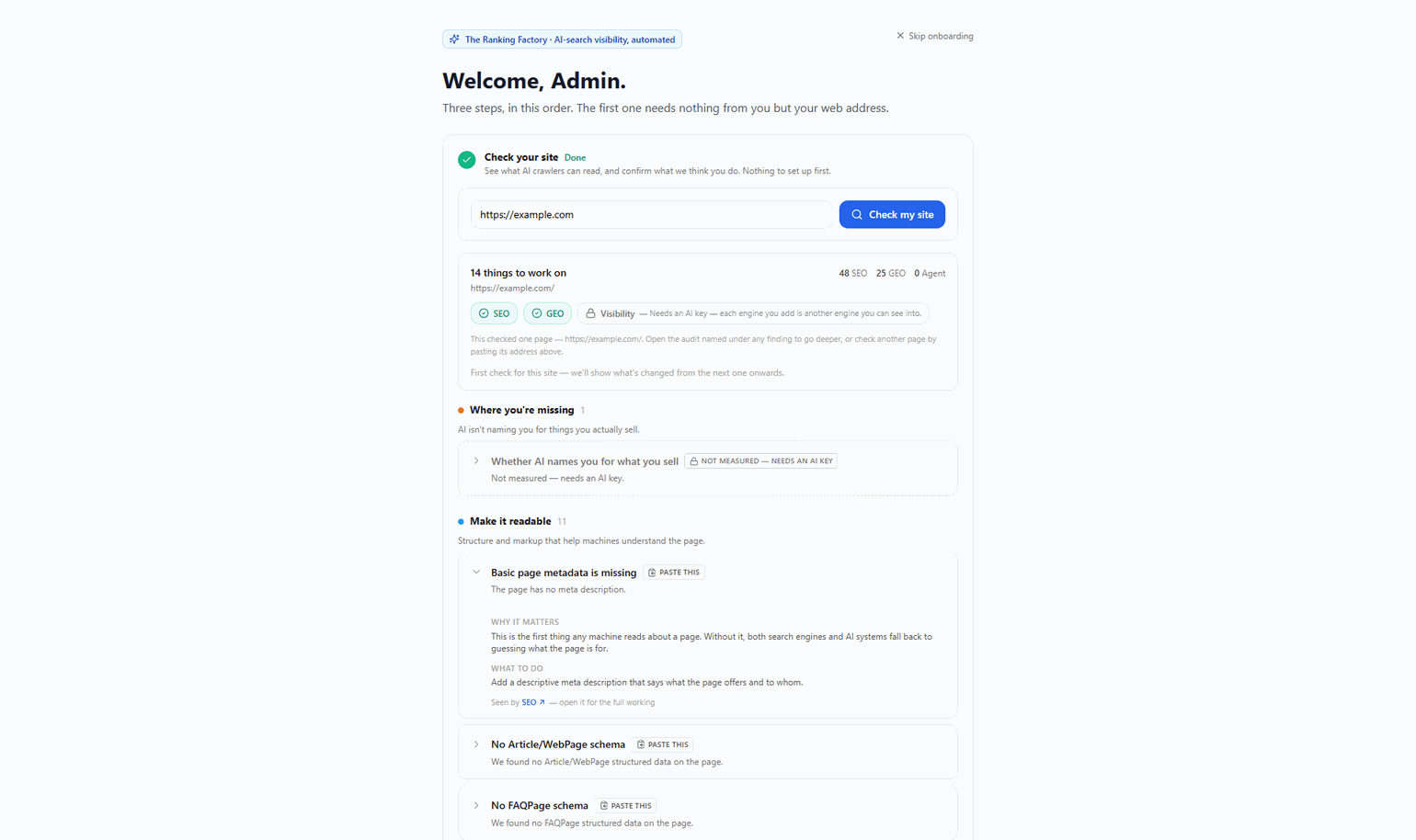
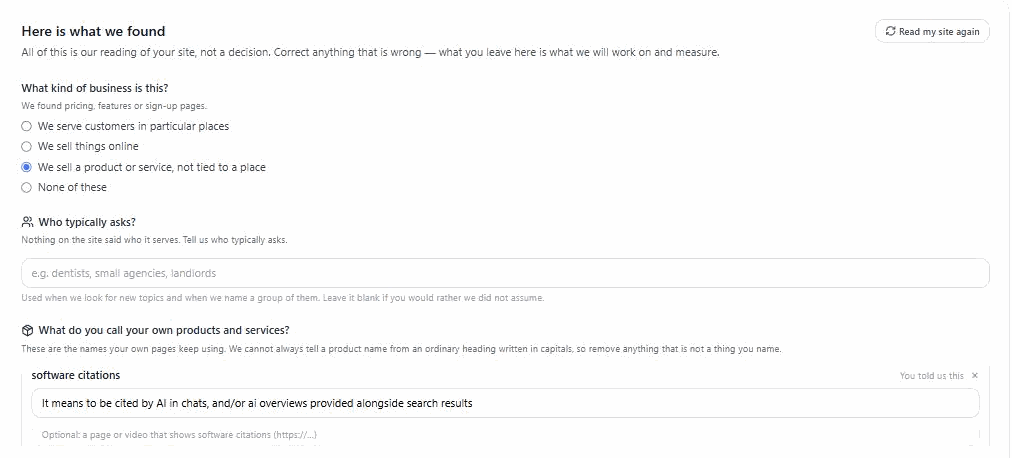
Still step 1 — correct what we think you do
The same crawl reads your pages and proposes what your business is about. Everything on that screen is a proposal, not a decision: the business type is a question with our answer pre-selected, "Who typically asks?" is yours to fill in (leave it blank and we assume nothing), the names your pages keep using for your products and services are listed for you to keep or remove, each topic shows the page it was found on, and nothing is saved until you press Confirm. Sometimes the honest answer is that your site says too little to tell — and the app says so instead of guessing, and asks you to type what you want to be known for, in the words a customer would use.
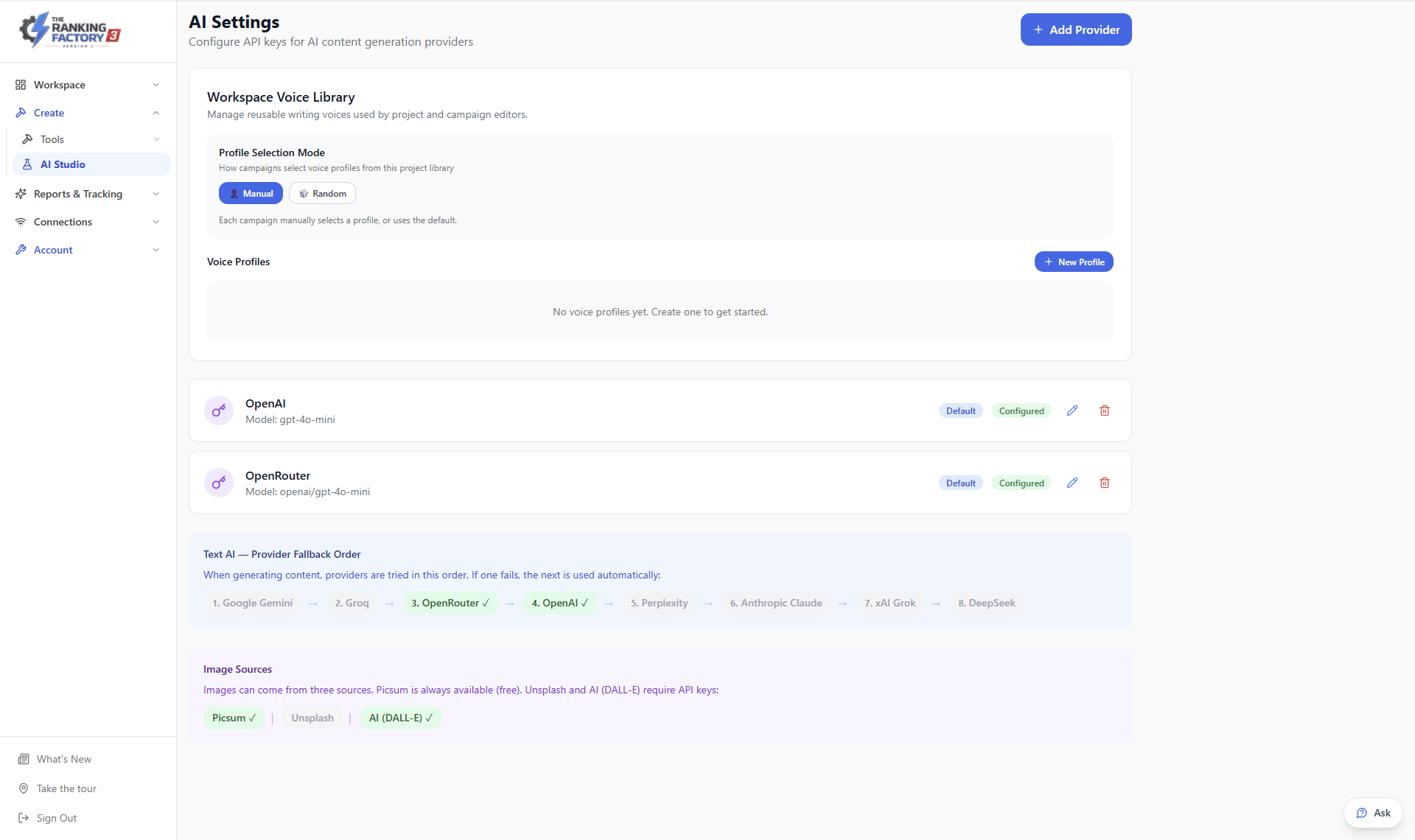
Step 2 — add an AI engine
The check reads your site; it can't read AI's answers without an engine to ask. The app literally asks the engines the questions your customers ask — on your own key, your own quota, your own data. Gemini is the suggested first engine because it is the cheapest to measure with: with billing on, Gemini's first 5,000 searches a month are free. Each engine you add is another one you can see into.
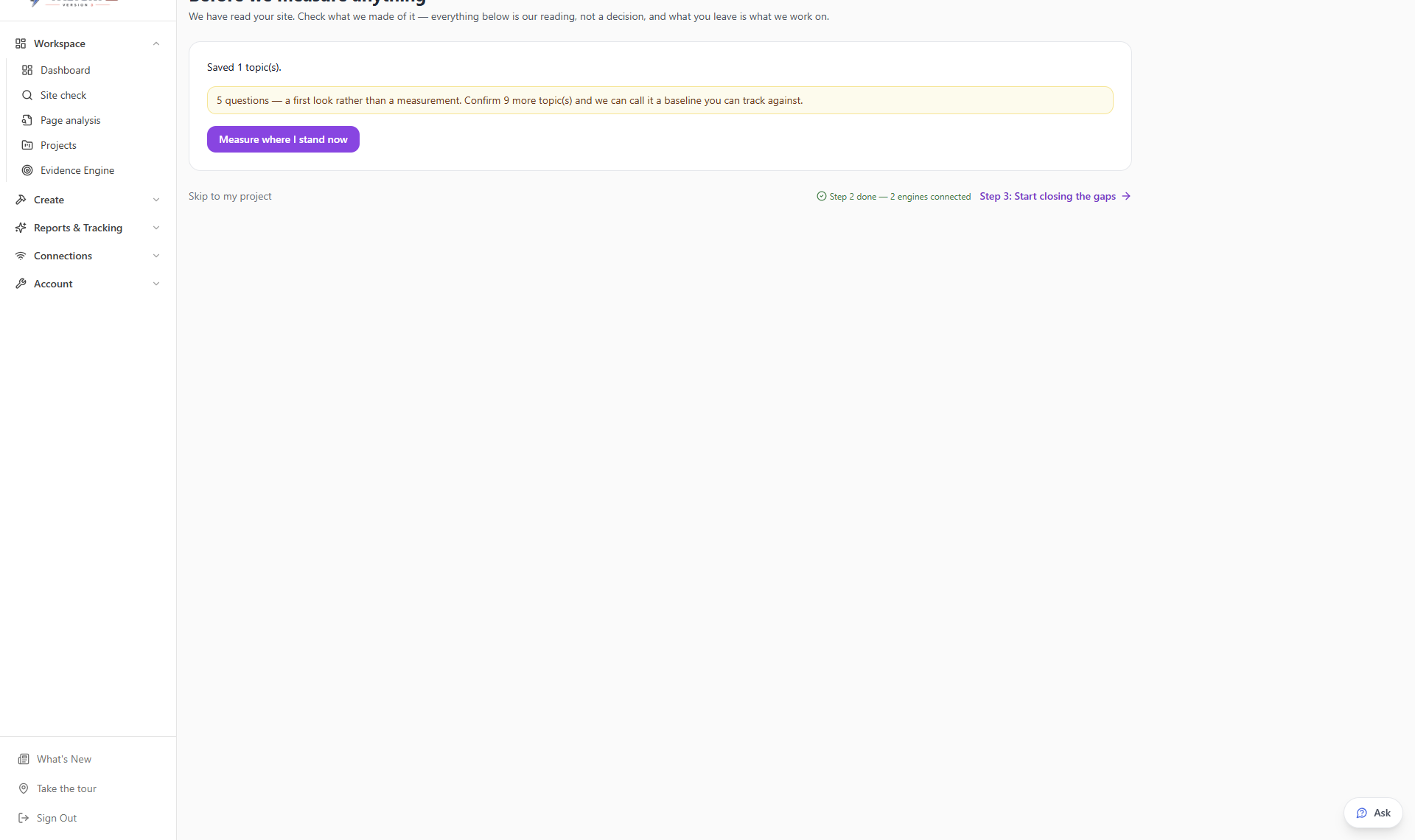
Measure where you stand
With topics confirmed and an engine connected, the app offers a first measurement — and tells you exactly what it will and won't establish before it spends anything:
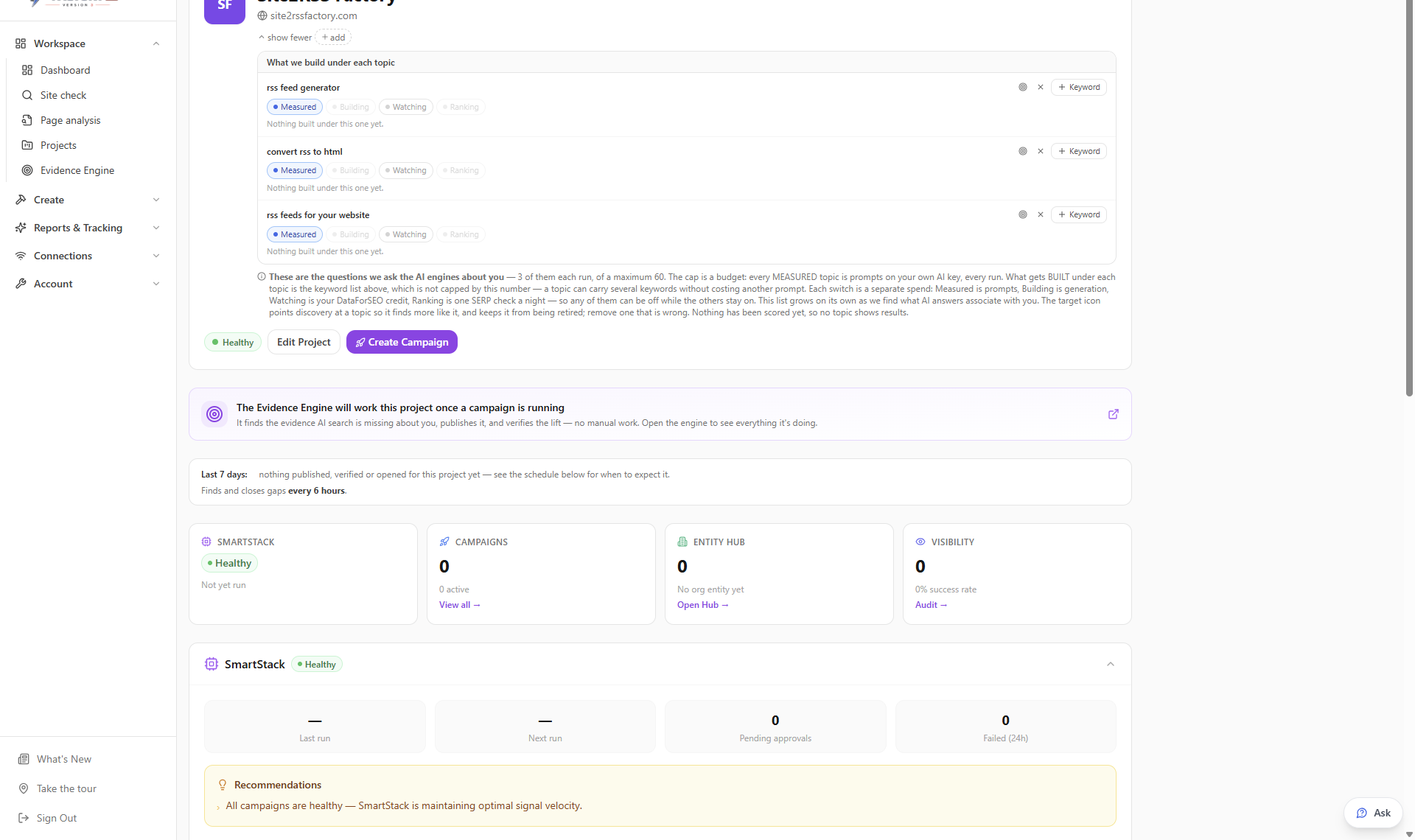
Your topics, and the four switches
Everything the app measures and builds hangs off your topic list, on the project page. Each topic carries four independent switches, each a separate spend: Measured (we ask the AI engines about it — your AI key), Building (the engine creates and publishes evidence for it), Watching (Google's AI Overview is checked — needs a DataForSEO key), and Ranking (a classic nightly position check). Any of them can be off while the others stay on.
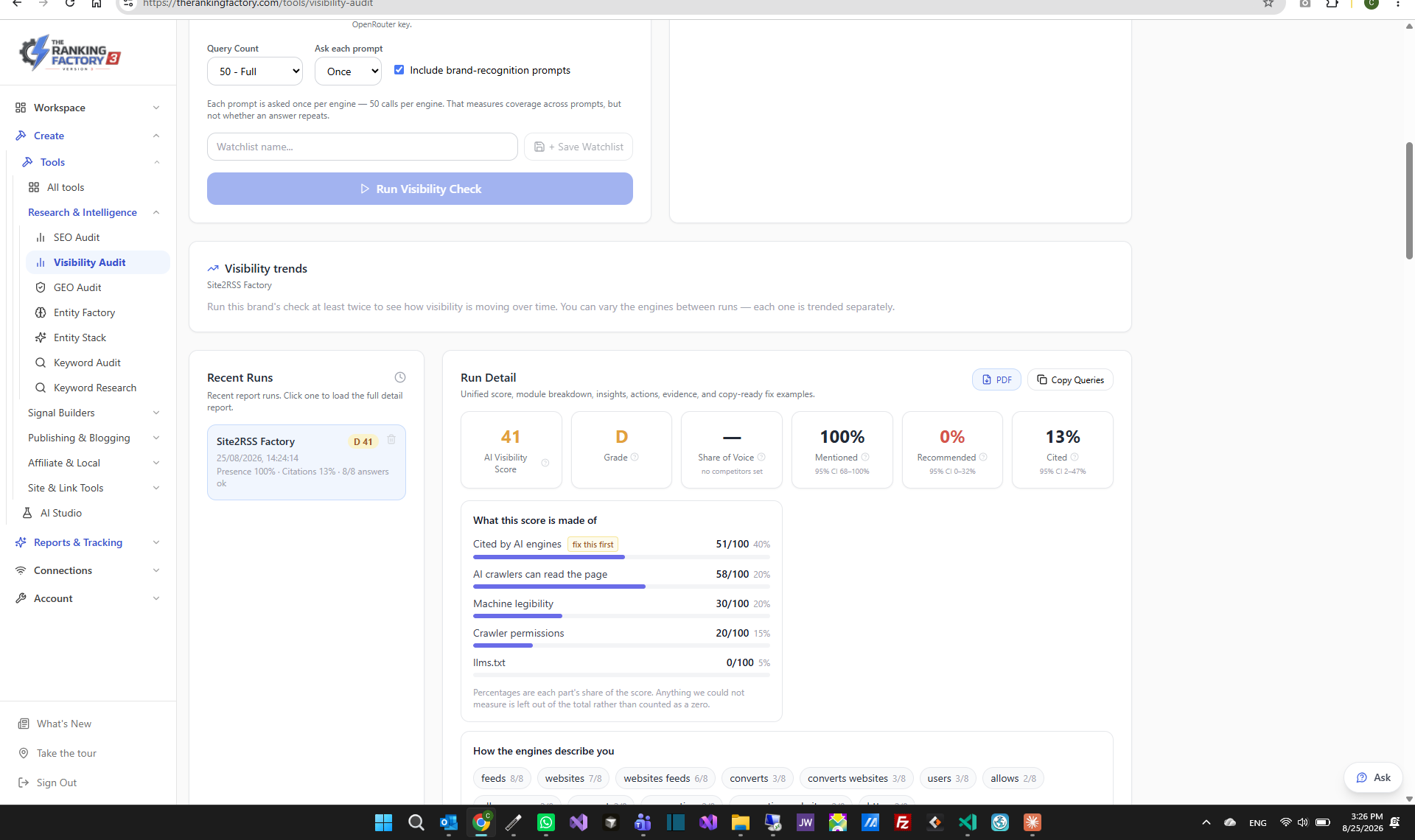
You have your first numbers — now what?
This is the moment most tools leave you hanging, so here is the answer plainly. 1. Read one number first: CITED. Mentioned means the engines recognise your name; cited means they point people at your site. Moving cited is the work, and the score card's "fix this first" already points at it. 2. Start the engine (Step 3). It works on exactly what the measurement found missing — finds the evidence gaps, builds the pages, and publishes them, then re-checks on every cycle. Everything it publishes leaves a link you can open. Review before publishing is on for new accounts, so each page for your own site waits for your approval first; turn it off in Settings if you'd rather pages go out straight away. 3. Know where your numbers live. Reports & Tracking → Visibility Audit holds every run; run the check at least twice and the trend view starts, engine by engine. 4. Then climb the ladder, one rung a week: fix the check's findings top-down · connect your own site for publishing (a page you own outranks one on a Google domain) · connect Google when you're ready to publish (it also brings your Search Console data in, free) · add a second engine · add the Serper key for rankings and live discussions · and when you want it hands-off, move to a plan where the engine runs on its own schedule. 5. The weekly habit: read the dashboard's "Only you can do this" band with your coffee, glance at your topic list, and open the Monday email, one for each of your sites. Everything else is the engine's job.
The app will tell you "not enough data yet" and "too soon" — in those words. That's deliberate: every number here is one you can defend, and a tool that invents certainty is selling you noise. When it says wait, waiting is the strategy.