Agent access — connect Claude or another AI client
What it is
Your account can answer an AI agent directly, over MCP (Model Context Protocol) - the way Claude and other AI clients connect to outside tools. Ask it in plain language: what are my open gaps, which topics am I measured on but never named for, who is being cited instead of me. It is read AND write. Fourteen tools always read your visibility runs, the sources engines cited, your gap list, the evidence you have published, what is waiting for your approval (the Google Docs, Sheets and Slides held for your review among it), and your entity - on every plan, including Starter, and in the trial. Six more tools can act - correcting the entity, confirming a product, closing a gap, approving a publish, spreading held Google documents over the coming days, starting a run - but only once you tick "Let it make changes" when you connect it or make its key, which is off by default. Nothing an agent calls publishes, approves, edits or deletes anything until you tick that box. See "Letting an agent make changes" below. The address, for every way of connecting, is exactly: https://therankingfactory.com/api/mcp Use it exactly as written. A client that signs in checks it against what our server says it is, so a different spelling of the same address can fail.
No account: check a site from Claude or ChatGPT
A second address needs no account and no sign-in: https://therankingfactory.com/api/mcp/check Add it as a connector and ask, for example, "check example.com for AI search". Its one tool, check_site, runs the same free check as the Free AI audit page - whether AI crawlers may read the site, whether its pages can be read without JavaScript, its structured data, titles and more - and answers with what it found, most urgent first. It asks no AI engine and stores nothing. The full report, with what to do about each finding, is emailed from the link in the answer once you confirm your address. One site can be checked a limited number of times a day.
Finding the server from the domain
Our site lists both MCP servers - your account's and the free site check - in a catalog at therankingfactory.com/.well-known/ard.json, the address the Agentic Resource Discovery specification gives, and at /.well-known/ai-catalog.json, the address MCP's discovery uses. Each entry points at the server's MCP Server Card, which says where to connect and which protocol versions it speaks. A client that reads these files can find the server from our domain alone; you can still paste the address yourself, as before. Each server gives the same name as its Server Card when a client connects: com.therankingfactory/mcp for your account's, and com.therankingfactory/site-check for the free check.
Connect Claude by signing in (every plan)
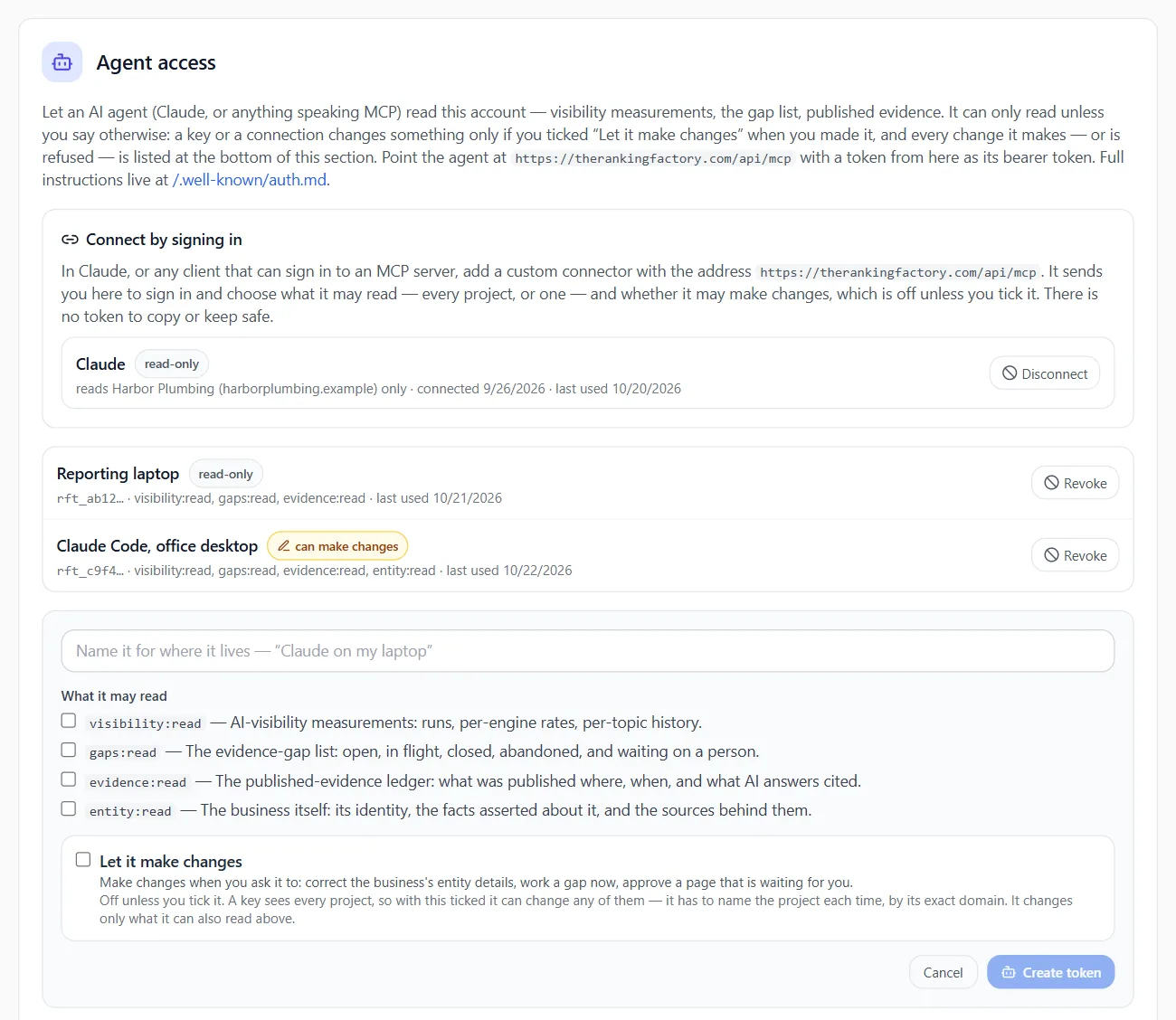
1. In Claude, add a custom connector - in Claude's own words at the time of writing, Customize, then Connectors, then Add custom connector - and enter the address above. 2. Claude sends you here. Sign in if you are not already. 3. The page shows who is asking, where you will be sent back to, and what it may read. For Claude, who is asking is claude.ai: that is the address that vouches for it, rather than the name it gives itself. 4. Choose what it reads: every project in the account (including ones you add later), or one project only. 5. Leave "Let it make changes too" unticked to connect it read-only. It starts unticked whatever the application asked for. 6. Allow. Claude finishes connecting, and there is no token to copy or keep safe. A connection given one project reads that project and no other, whatever it is asked: every tool answers for that project, and asking about another is refused. That is the choice to make when you connect on a client's behalf. Clients that run on your own computer, such as Claude Code, work the same way; the page adds a warning for them, because any program on the machine could claim to be one. Allow it only if you started the connection yourself.
Connect with an agent key (every plan)
For any client that cannot sign in: 1. Settings → Advanced → Agent access → Create an agent token. 2. Name it for where it will live, choose what it may read, and copy it. It is shown once; we keep only a hash. 3. Give the client the address above and the header: Authorization: Bearer rft_… A key sees every project in the account. Ask any tool for one project by passing its domain or name. list_cited_sources has quotedText, the newest sentence an engine quoted from a cited site (with quotedUrl naming the page); Sites AI cites shows the same sentence under the cited page, with the date. A quote is kept only where an engine hands one back on a route we read - today, Claude asked directly on your own Anthropic key. For a quote, we read Claude through OpenRouter and the other engines for the cited address only, so quotedText is usually empty. list_cited_sources also returns each site's sentence history (citationsWithWords and sentences), the same as the page shows. get_gaps also returns citedSincePublishing, the same figure the project page shows on each gap row: how many of the runs that asked about it since publishing cited the gap's evidence, with the engines - an association, not proof the evidence caused it. Building your own integration? /developers has both servers, every tool, the limits and the error shapes in one place.
Letting an agent make changes
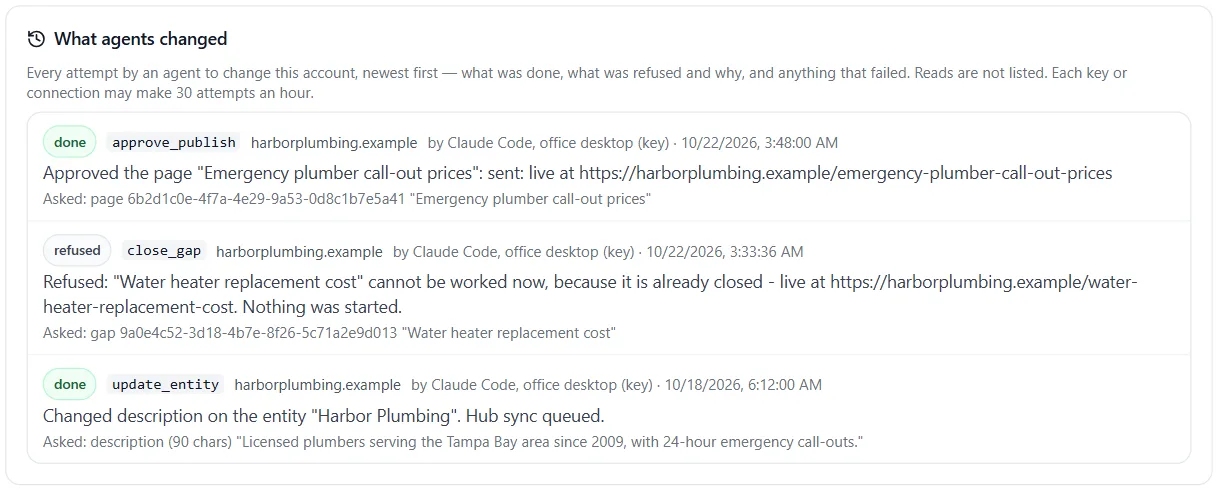
Off unless you turn it on. A connection or a key can change something only if you ticked "Let it make changes" - on the page Claude sends you to, or when you create the key. Connections and keys made before this existed stay read-only; to give one the ability, disconnect it and connect again, or make a new key. With it, six more tools appear, and each does exactly what the button in the app does, with the same refusals: - update_entity - corrects the business's entity for one project: its description, main topic, location, the subjects it knows about, and its sameAs links. Saved as the Entity Factory saves it, so the hub Sheet and the canonical page on your own site are rewritten from it. - confirm_product - says what one of your named products is, where the project page's "tell us what it is" card keeps it. Only for a name that is waiting or already on file, and the line must be yours, or come from a page on your own site that opens. A line from a web search of the name is refused. - close_gap - asks the Evidence Engine to work one gap now, as "Close it now" does. If Review before publishing is on, what it writes is held for you, not published. A page that is already written and waiting is refused here. - approve_publish - approves one waiting item by its id and version: a held page goes to your site, a re-aligned page, page update, rebuilt page or About page update replaces the live one, and a Google Doc, Sheet or deck held for your review is shared and counted, as its Publish button does. A rewrite of a page an AI engine cites is listed in list_waiting with that reason, and only an approval sends it. Agents are told to do this only on your instruction for that item. The version names the text as it was listed, so if new material replaced a waiting update in the meantime the approval is refused and nothing is published until the new text has been listed again. - schedule_held_release - spreads the Google documents held for your review over the next days, as "Publish over the next N days" does on the review list. Asked without "start" it only answers the plan - how many a day, the last day, today's pieces, and any groups of the same subject worded differently you have not decided - and changes nothing; agents are told to show you that plan and start it only when you say so. It is refused while such a group is undecided, unless you told it to include them. One schedule runs for a site; asking again while it runs or is paused answers with it - paused, and why, if it is - and starts nothing twice. You pause, resume or cancel it on the review list, which says the agent started it. What is waiting for you (list_waiting) shows each schedule too, so an agent can tell you when one has paused. - run_visibility_now - starts a visibility run from the project's saved watchlist, on your own AI keys. Refused while one is already running. Every change names one project by its exact domain. A connection given one project can change that project and no other; a key must say which project each time. An account whose subscription has lapsed is read-only here too. Each key or connection may make a limited number of attempts an hour - 30 as standard, and the number in force is shown above the record in Settings → Advanced → Agent access. Reading is not limited. What an agent did is under Settings → Advanced → Agent access → What agents changed: the last 50 attempts, newest first - what was done, what was refused and why, and anything that failed - with which key or connection made it. Disconnect or Revoke stops it at once.
Seeing and ending connections
Settings → Advanced → Agent access lists every application connected by signing in - what it reads, whether it can make changes, and when it was last used - with Disconnect beside each, and every key with Revoke. Either stops it at once. A signed-in connection also stops by itself if the account is no longer on a paid plan or trial (within the hour), and if an old copy of its sign-in is ever presented again, which we treat as a sign it was copied. Connecting again takes a minute, and nothing about your account is lost.
Every number an agent gets comes with the sample it was measured over, and says which project it covers. If an agent quotes a rate to you without either, ask it for them.