Your dashboard: what needs you, what doesn't
Your dashboard opens with your account in counts: projects, how many things need you, projects with a problem flagged, gaps being closed and campaigns running. Under them, each project's latest reading, one line per engine with its 95% range, then your project cards. Below those, everything is grouped by one question: who has to do it? Three bands, and the point of the grouping is that most of the time only one of them is asking anything of you.
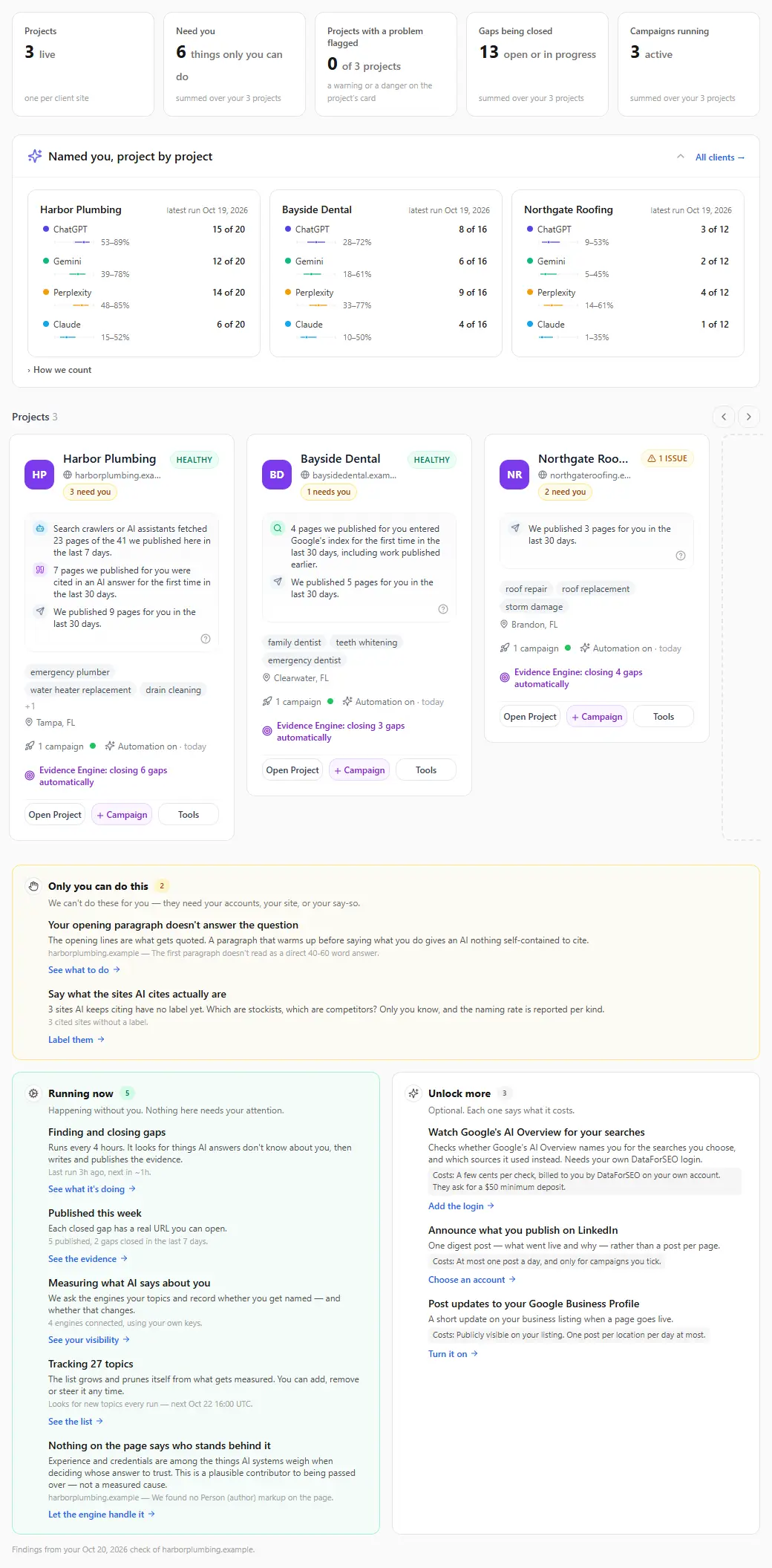
Running now
What is happening without you — the engine finding and closing gaps on your plan's schedule, what it published this week, what we're measuring, and the topics being tracked. Everything here is a fact about your account, not a promise about the product. If your plan runs the engine on demand rather than on a schedule, this band will not claim otherwise — it will say so, and the "Run now" control appears in the band below instead. If nothing is running yet, it says that too. "Not yet" is a real answer and we would rather give it than pad the list.
Only you can do this
The things we genuinely cannot do for you: publishing that keeps failing on your own site, adding an AI engine, connecting somewhere to publish, fixing something on your own site (a snippet to paste or a developer's job), saying what the sites AI cites actually are, pressing Run now on a plan without a schedule, or releasing the engine if you paused it. Blockers come first — if AI crawlers cannot read your site at all, nothing else is worth doing until that clears. An empty band here is a result, not a gap in the page. It means nothing is waiting on you, and it says so.
Unlock more
Optional. Every row states what it costs — your own API credits, a post on a feed you own, an upgrade — because an option offered without its price reads as free.
There is no progress bar and no "dismiss". The old checklist had both, and it told a perfectly healthy account it was 40% finished forever — two of its five rows described work the engine did by itself. These bands are a state of affairs, not a course to complete.
One version of every page
We are making the app simpler page by page (since 20 Nov 2026). Each page we rebuild replaces the page it was built to replace, for everyone, once we have checked that everything the earlier page did is still there. There is no "Detailed view" switch and no view to choose: every address opens one page. A page we have not rebuilt yet opens as it was, inside the same menu. Accounts made since 19 Nov 2026 get each rebuilt page a week or more before everyone else. The first pages replaced for everyone, on 26 Nov 2026, are a site's Pages we publish, Search and Other sites tabs. Home, My sites, All sites, Welcome, the Activity report and a site's Summary follow on 28 Nov 2026. For 30 days after a page is replaced, "Use the previous version of this page" at its foot opens the page as it was, for that visit only: open the page again and you get the new one. We note which pages people go back to, so we can see what is missing. For the first 14 days one line at the top says "This page is simpler now. See where things moved." The link lists, in plain words, where each thing on the earlier page is now. Close the line with its ×. The rebuilt dashboard and site Summary open on what we did this week, how it went, and what happens next, on one screen. Each site is in one of four states, and the word beside its name says which, the same in the table and on the site: Setting up (the work has not been started), Started (started, the first week of results not in yet), Running (at least a week of results: the first thing we published went live, or the first AI check since the start, 7 or more days ago) or Stopped (something stops the work, such as a connection that refused us or a campaign whose last run failed). A site has no "Healthy" or other health badge until it is running. While a site is setting up, its summary is the set-up checklist and nothing else: Check your site, Tell us what you do, Add your AI key, What should we ask AI about you?, Connect your website, Start the work, with "3 of 6 done" and only the next step open, with its one button. "What should we ask AI about you?" is where you choose the questions each check asks; press "Not now" to go on, and until you choose each check takes turns through your topics. Connecting your website is needed to finish setting up. Press "Not yet" and you can start straight away; we keep that answer on your account, not in your browser. Nothing is published until your website is connected: the pages we write are kept as ready drafts for you to copy, up to 4 a month. Your own cloud site counts as connected: choose it in the site's Settings, Publishing, "Where pages go", with its storage connection, bucket and web address set, and the step is done and the pages we write go to your cloud site, up to 3 a day. A Google account counts for a site only when it is linked to that site, in the site's Settings, Connections for this site, or is the only one the site could use: with several Google accounts, link the right one to each site. Press Change there to choose another account or Not linked; work already started on the site keeps the Google account it started with. The same six steps are on the Welcome page when you first sign in. Under the steps, "What happens after you start" gives the real timings: when we first run and how often after that, how many pages a day, the day of the first AI check, and Monday's read of Google's own search figures. Once started, until a week of results is in, the summary says when the work started ("Started at", in your own time), what is happening now, the day your first weekly summary is due, and the six steps of the ladder - Published in progress, the rest not yet - each with when it usually comes on your plan. The first round runs as soon as you press Start the work, on every plan. When something stops the work, that one problem is shown above everything else, with its button. On a running project, Simple opens with one sentence on the week, then one banner with the first thing that needs you and its button ("Nothing needs you this week." when nothing does). Since 21 Nov 2026 "Where your site is" comes next: the six steps of the ladder - Published, Read by Google and AI, On Google page one, Used as a source by AI, Known by name, Mentioned to new customers - one line and one figure each, every figure out of its own total, starting with the highest step reached and the step we are working on. Mentioned to new customers is never "Done": it reads "Started" from one answer. A step nothing has measured yet says why instead of showing 0, and a step not done yet says how long it usually takes. Each step links to the one page that explains it. Since 22 Nov 2026, a project that also publishes to a cloud site has "Parts of this project" under the steps: Your website and Your cloud site side by side, each with its own steps. Your cloud site has four: Published, Taken by IndexNow, Read by Google and AI crawlers, and Used as a source by AI, each counted from the cloud site's own records. The figures of the two are never added together, and a step nothing has read yet says "Not read yet", never 0. Three cards follow; where the ladder already gives a figure, the cards don't repeat it. What we did: new pages on your website and supporting pieces elsewhere, each beside the week before. How it went, in the order every Simple screen and the weekly email use (since 14 Nov 2026: published, on Google, used as a source by AI, mentioned to new customers): first Google, how many of the pages we published are on page one, with one line under it naming the sources used; then the things we published that an AI answer used as a source for the first time; then how many answers to questions a new customer would ask mentioned you - these are test questions we ask, not answers a real customer saw - as every assistant's answers added together from checks of the last 7 days, with how many answers it rests on (the same figure as the AI answers tab, the weekly email and the public ladder; a figure from questions people who already know you would ask is never the headline); then the same for people who already know you. "See each assistant" lists each assistant's own figure, and any check older than a week apart. When no question a new customer would ask was asked, it says so. For page one, Google's own figures (Search Console) are the base; where our nightly checks run too, a page counts once if either puts it on page one, at its best position. The week nightly checks are first added, one line says the count now includes them. What moved onto and dropped off page one is compared with the week's stored count. With no Google source connected, there is no Google part at all, never a row of zeros. What happens next: the pages being written for your topics and the next AI check. "See each assistant" and "See it by month" open more on the same screen, and the links along the bottom open the detailed tabs. On the dashboard, Simple says how many of your sites are running and how many things need you. The "Needs you" panel lists each thing once with its button; the same problem on several sites is one row naming them. The table shows each site's status, what we published in the last 30 days, its pages on Google page one, and the things AI used as a source for the first time. "None yet" means there is nothing yet; "Not checked yet" means nothing has looked, never 0. Click a site to open its summary. Since 21 Nov 2026 the warnings about your account are rows of "Needs you" too, sorted with everything else: AI keys that can't be read, a Google account whose sign-in or permissions ran out, Search Console that stopped, sends nothing or is not connected, Blogger limits and Google Drive sharing that failed in the last day, and no search key. Each says what happened in one sentence and has one button to where it is fixed: AI Settings, your Google connection, Account settings under Advanced, or the site's Other sites tab. Nothing needs closing: a row goes by itself once its cause is fixed. On My sites, each row's Actions menu has "Move up" and "Move down"; the order is saved, and Home, My sites and every list of your sites follow it. In the Activity report, for one site, "Which kinds of work AI uses" shown by "Whose site it is on" says how many published items on other sites are left out of that view: posts on a LinkedIn account, a Blogger blog or a Business Profile location belong to your whole account, not to one site. What we ask of you comes in three tiers (since 19 Nov 2026). "Needs you" is only what you alone can do, and the work it belongs to waits until you do: a connection, a key, something that stopped, a reply under your own name, a page waiting for your OK while Review before publishing is on, or a change to a live page. "Would help" is a recommendation that never holds anything up, such as a case study that would be better with a job you did: add a job, choose "Publish without it" (we keep the page we published on it, with no case study, and stop asking; we never make up a job), or leave it out. "We'll take care of it" is what only needs a yes: posts in our posting plan, Google files in your Drive, moving your entity page to your own site, and the settings we recommend that cost nothing. It is one line with a count and the date the first goes ahead. If you have not answered after 7 days, we go ahead without you; change the days or switch this off in Account settings, under "Go ahead when I have not answered". Rebuilt pages we held because they said things nothing of yours supports are discarded, and your weekly email says how many and why; your live pages stay as they are. Home shows the three things that matter most and the rest one press away; the headline counts only what needs you. Things of one kind are one row with their count; on the dashboard the same kind on several sites is one row with each site's count under it. "Add a line" looks on your own site first and asks you only when it finds nothing there. Under Google, a project's summary shows its best results on page one: the search, where it stands ("around 3rd" when the figure is Google's own average) and the page we published that holds it, with "New on page one this week" once last week's count is stored. When there is nothing to say yet about AI assistants, the summary opens with Google. A site's AI answers tab has its own Simple screen (since 14 Nov 2026; laid out in sections since 18 Nov 2026). It opens with two steps of the ladder, new customers first. Mentioned to new customers: answers mentioned you, on questions a new customer would ask, such as "1 of 33". Known by name: answers mentioned you, on questions someone who already knows you would ask. These are questions we ask AI assistants as a test, not answers a real customer saw. Each figure is every assistant's answers added together, from checks of the last 7 days, and is the same figure as your Summary, the weekly email and the public ladder; "See each assistant" lists each assistant's own figure under it, and an assistant whose latest check is older than a week is listed apart and left out of the total. Known by name is done at 2 answers or more. Mentioned to new customers is never shown as done: it reads "Not yet" at 0 and "Started" from 1 answer, always with its figure, because a few test answers are a start, not a result. What a figure counts opens on hover, on a tap, or with the keyboard. Under the steps: AI answers that used your pages but didn't say your name, Google's AI Overview with "See each search" and "Check now", and Microsoft's count when Bing is connected. "Run a check" runs your saved check now, with what it costs on your own AI key and how long the last one took; "Change the questions, assistants or schedule" is under it. Below, "More detail" has six sections that open one at a time and load only when opened: By assistant, Mentioned instead of you, New customers check by check, Where AI gets its answers, Each assistant over time, and Every check. Each list shows ten rows, then "Show 25 more". "See each search" opens your site's searches on Google's AI Overview: the finding at the top, ten searches, one search box, "Check now" and a way back to AI answers. Since 21 Nov 2026 "See which" beside AI answers that used your pages but didn't say your name opens those answers, newest first, each with the question, the assistant and the page it used; and beside pages AI stopped using, it opens those pages, each with the assistant that used it and what happened at the checks since. Microsoft's count and Google's AI impressions end in sections that open one at a time, such as "Your pages" and "How it is counted", instead of one "Show the full detail". Since 21 Nov 2026 "Change the questions, assistants or schedule" starts with "This site's weekly check": "Check this site every week", or "Don't check this site", which asks you first and then stops the weekly check, so nothing more is spent on your AI key for it; choose "Check this site every week" to switch it back on. Under what is asked, "Add a subject" lists the subjects that have a page on your site and that no check asks about yet; "Ask about it" adds one to the site's next check, on your own key, or says why it can't. Also since 21 Nov 2026, "Change the questions, assistants or schedule" opens on a page of its own, and so does "Where AI gets its answers" once AI has used a source for your questions, each with "Back to AI answers" at the top. A check's form shows its fields in four parts that open one at a time: "Questions", "Assistants", "Schedule" and "More options". The same day three more parts moved to pages of their own. "Every check" lists your checks, on a page of its own once there are more than ten; "Open" beside one opens that check's answers on its own page, under "Back to every check". Under "Where AI gets its answers", each source opens on its own page, where you say what it is and see its pages, and, once AI has used more sources than the ten listed, "Show every source" opens the full list, with a search box and filters. "Tracked questions", under "Run a check", lists the questions you track; each opens on its own page, with how often it is asked, "Pause", "Stop tracking" and its answers. A site's Pages we publish tab has its own Simple screen too (since 14 Nov 2026). It says how many pages we have published on your site and how many AI has used as a source, then shows how far your pages have got in three bars: Published, Read by AI or a search engine, and Used as a source in an AI answer ("All 127 read, 79 used as a source"). The read bar shows only when we can see your site's traffic, through Cloudflare or our free WordPress plugin; without it the bar is left out and one quiet line at the foot of the tab says how to connect it. "N pages have been read but not used yet" counts only those pages, never all the pages read; "See which" opens them. Under "Needs a look" are up to two rows from reading your pages back: pages we published that now answer "page not found", and pages that have changed since we published them (usually an edit by you or your site's theme). "Published this week" lists the newest pages. Since 20 Nov 2026 the tab ends in named sections that open one at a time, each read only when you open it: every page we published with where it has got to (25 a page), page updates waiting for your OK, your review schedule, and your business facts page on your own site. A "See which" opens "Every page" on the pages it names. Since 22 Nov 2026, a project that also publishes to a cloud site has "Your cloud site" under the bars: its address and its own four steps (Published, Taken by IndexNow, Read by Google and AI crawlers, Used as a source by AI), counted on their own and never added to your website's figures. "See every page on your cloud site" lists its pages, ten at a time, each with where it has got to and the date. A step nothing has read yet says "Not read yet" and what would read it: crawler tracking and the Search Console steps are both under Your cloud site, in the site's Settings. "Open the full workbench" on the Pages we publish tab opens everything we are doing for that site, in four sections that open one at a time: Waiting for you, Coming next, Published, and How it is running. Each section shows ten rows first, then "Show 25 more". Each row has one main button and an Actions menu. Anything waiting for you opens on its own page; for work that stopped after several tries, choose Try again, Change it (give the address of the page if you published it yourself) or Leave it out. Since 21 Nov 2026 a post your website took without saying where it is, or holds in its own review queue, has its own page too: paste its address in the box "It's live: give its address" and press Save the address, or Leave it out (the post stays where it is). A page or Google file waiting for your OK has "Read it", which opens it in full right there in its row, without leaving the page; Escape or Close folds it again. "Publish now", under what you read and first in the row's Actions menu, publishes it the way approving it always has: a page goes live exactly as you read it, and a Google file is shared from your Drive. The row then says it is published, with a link to it. A Google Sheet or Slides file has no text we can show here, so open it in Google Drive to read it. How it is running says whether the automation is on, when it runs next and what we plan for the site, with Run now, and links to Pause or resume, in Account settings, and to Publishing your earlier work, in the site's Settings: pages built from your earlier Google Docs, Sheets and Slides, published to your site a few a day, not all at once. In Coming next, each row says the kind of page and where it goes, whether writing has started, and its place in line; "See the plan" shows what we will write for it, before anything is written. When a "Needs you" row on the dashboard covers several items, such as work that stopped after several tries on three sites, its button opens them one after another in the same tab, never one tab per site. A dark bar above the page says what kind of work it is, which one you are on and the site ("Stopped work · 1 of 6 · example.com"), with Skip, Next and Back to Home. Finishing an item moves you to the next; after the last it says "All 6 done." You can leave part-way: the row then says how many are left and its button reads "Carry on". Each site named under the row is also a link to that site's own list. A site's Other sites tab has its own Simple screen as well (since 14 Nov 2026). It says how many supporting posts are live away from your website (Google Docs, Sheets, Slides, YouTube and elsewhere) and how many AI used as a source for the first time in the last 30 days, against the 30 days before. When most of the answers that used them already mentioned you by name, it says that these posts back up your website more than they win new mentions. "Where they are" has one bar per place. "Waiting for your OK" counts the posts waiting for you to approve them, and "Posting" says whether posting runs on its own, when it last posted and how many new posts went out this week, with "Pause or change", which opens a small panel right there: the one switch that pauses or resumes the automation on every site, and a link to this site's Settings, under Publishing, where what it publishes and how fast your earlier work goes out are set. The tab ends with its next steps, each its own short page with a way back: "Ways to get mentioned" (the pages AI used without mentioning you, most used first), "Every post, newest first", and everything we are doing, in full. "Ways to get mentioned" opens on the three pages AI used most in answers that did not mention you (since 21 Nov 2026). Each says what to do about it (get listed, get reviewed, reply in the discussion, ask the author to add you, or ask to be mentioned) and has a button that opens the page. The rest wait behind "Show 25 more", one line each: press a line to open it. When you have got your business onto a page, press "I got onto this page" and say who wrote it. The page leaves the list, and every AI check from then on looks for it among its sources. "See the mentions you recorded" lists them with whether AI has used each as a source since, and "Remove this record" takes back one recorded by mistake. "Not for me" and "Comments closed", in a page's Actions menu, take a page off the list, each with Undo. None of this needs a search key: the list is read from the AI checks you already run. Until there is a page to act on, it says why, and when your next AI check is. Once a week we also judge those pages, on your AI key (since 21 Nov 2026): is each one a real opening for your business, a page on your subject where a mention can be earned, or not, with one reason (closed, off your subject, a competitor's own page, a reference page, or not a place to earn a mention). Pages judged real openings come first on "Ways to get mentioned", then the pages not judged yet, and one line says when judging last ran, how many pages it judged, how many wait and when the next run is. A page judged not an opening leaves the list; "See what was judged, and the cost" lists those pages, each with why. At most 25 pages are judged for a site in a week, the most used first, and a page is judged again only after 30 days. Judging is on for every site unless you switch it off: the switch, "Judge every week", is on that page and in AI Settings, where the cost is shown as an estimate from the token counts of your own runs, a run and a month, of your own AI credit. "Judge now" judges the pages that wait, inside the same 25 a week, with its estimated cost on the button. Without an AI key nothing is judged, and the page says so. A site set to Not ready is not judged. Real openings also reach your work queue (since 22 Nov 2026). When judging ends, pages judged real openings enter the queue, the most used first: up to three a week for a site, and at most three wait at once. On Home they are under "Would help": nothing waits on them, and they are not counted in what needs you. "Open them" opens them one at a time, as "Mentions on other sites" or, for a Reddit thread, "Reddit replies". Each has its own page, which says what the page is, why it is an opening and what to do, with "Open the page" and the same three presses as the list: "I got onto this page", "Not for me" and "Comments closed", each with Undo. A press takes the page out of the queue. So does the next judging run, when AI has not used the page in the last 30 days or it is no longer judged a real opening. On "Ways to get mentioned" a page in the queue says "In your queue", and one line says how many are in it. Without an AI key nothing is judged, so nothing enters the queue. If you disagree with a page judged not an opening, open it under "See what was judged, and the cost" and press "Put it back among the openings". It is then listed under "Put back by you", it can enter the queue, and the weekly run does not judge it again. "Not an opening after all", in its Actions menu, takes it out again. Is this for your own business, or for clients? On the rebuilt pages, a new account is asked this once, before the first steps (since 14 Nov 2026). "Your own business" means one site: you open straight on your site's Summary, the menu has no Reports, and nothing asks you to add a Serper or DataForSEO key. "For clients (an agency or freelancer)" keeps Home with all your sites, Reports and the extras agencies use. It changes only what the screens show, never what your plan allows: you can always add another site, and when an account for your own business has a second site, we offer to switch it to For clients. To change your answer, open Account in the menu and press the other choice under "Who this account is for". If your account had sites before we added the question, we chose for you - one site as your own business, more than one as for clients - and Account says so. Hover over a number, a result, a row or a table cell (or tab to it, or tap it) to see what it counts, when it was last checked, or what is inside it. A site's Google tab has its own Simple screen too (since 14 Nov 2026), at one of two levels depending on what is connected. With Google Search Console only, it shows how many of your pages are on page one and how that changed over four weeks, a week-by-week chart, the clicks from Google on the searches where a page we published shows (against the 28 days before), how many searches put one of our pages on page one and how many of those you never asked us to target, what moved onto page one, and your topics. Where our paid position checks also run (they need DataForSEO or Serper credit, and Paid position checks set to Weekly or Nightly in Account › Settings), it adds how many pages are first, in the top 5 and on page one, what moved onto and dropped off page one since the last weekly count, and who outranks you most often on the searches you track, businesses first. One line under the headline names the sources used. Since 20 Nov 2026 "See the searches you are closest to winning" opens a short page under the tab: the searches where one of your pages is on page two or three of Google, closest first, ten then "Show 25 more", each with where it stands, your page there and one "Work on this", which adds the search to what we write about for the site. It uses only what is already stored: Search Console's latest read and the nightly checks you already run. Since 21 Nov 2026 "See where each page stands" opens a second short page: every page we published, with the search it does best on and where it stands, the best placed first, then the pages Google doesn't show yet and those not checked yet. What you see depends on what you have connected. A panel whose source is not connected is not drawn; a 0 always means we looked and found none. At the foot of the tab a missing source would fill, one quiet line says what connecting it adds - never on the Summary, the email or Home. Google Search Console is the one we recommend to everyone: it is free, and set-up asks for it inside "Connect your website". Account › "What each connection adds" lists every source, the question it answers, what it costs, who it is for, and whether you have it. DataForSEO and Serper are pay-as-you-go on your own account and mostly useful for agencies: positions for a chosen place and who outranks you need one of them, with its Paid position checks set to Weekly or Nightly (each is Off unless you switch it on); Google's AI Overview and AI Mode and the ChatGPT and Gemini apps need DataForSEO. On the rebuilt pages, My sites shows the same table of your sites as Home. On the rebuilt pages and the menu around them, text is set larger: nothing smaller than 13px. For an account made since 19 Nov 2026, the Monday email for each site is that site's summary in short: the same sentence, the same first thing that needs you, the three cards in a few lines each, and a button that opens the summary. See The weekly email, one per site. For every account since 26 Nov 2026 (accounts made since 19 Nov 2026 from their first day), the menu has five items: Home, My sites, Reports, Tools and Account, then Help and Sign out. While you are inside a site, its name sits under My sites and is the item marked as where you are. The highlighted item in the left menu shows where you are. Inside a site, the site's name at the top of the page is a list: choose another site to see the same tab for it. Inside a site, its tabs are Summary, AI answers, Pages we publish, Google (the old "Search & topics"), Other sites (the old "Off-site") and Settings. The pages the old menu listed are all still there, under their new homes. Reports holds the Activity report and All sites. Tools holds the site check, page analysis, every tool, and, under Advanced, Recipes, AI Studio and the automation's activity (SmartStack). Account holds Settings, AI Settings, Report branding and your connections (Google, Bing, Cloudflare, Cloud, Publishing). A page about one site is reached from that site's tabs, under "Show the full detail": AI Visibility, AI Overview, Google's and Microsoft's own counts, and Sites AI cites from AI answers; the Evidence Engine from Pages we publish; Competitor gaps from Google. In a site's Settings, "Your business facts" opens its entity, and Advanced lists its campaigns when it has more than one. If you have one site, the app opens on that site's Summary. Every old address and bookmark still works.